
Support / Getting started
What is Pilea and how does it work
Pilea is a feedback intelligence platform that helps product teams understand what customers actually need and prioritize what to build next. Connect your feedback sources, and Pilea automatically analyzes every signal and turns it into a prioritized backlog of product decisions your team can act on straight away.
How Pilea works
Pilea runs a continuous loop that turns raw customer signals into product decisions your team can ship. Here’s the flow from start to finish.
Step 1: Feedback comes in
Every customer signal is a piece of feedback: a support ticket, a Slack message, a survey response, a sales call. You bring it into Pilea by connecting your existing tools, importing a CSV, adding feedback manually, or running a survey. Pilea connects to Intercom, Zendesk, HubSpot, Slack, Notion, and call recorders such as Gong, Fireflies, Jiminny, Granola and Attio. Every connection is set up once; after that, feedback flows in automatically. See what tools Pilea integrates with.
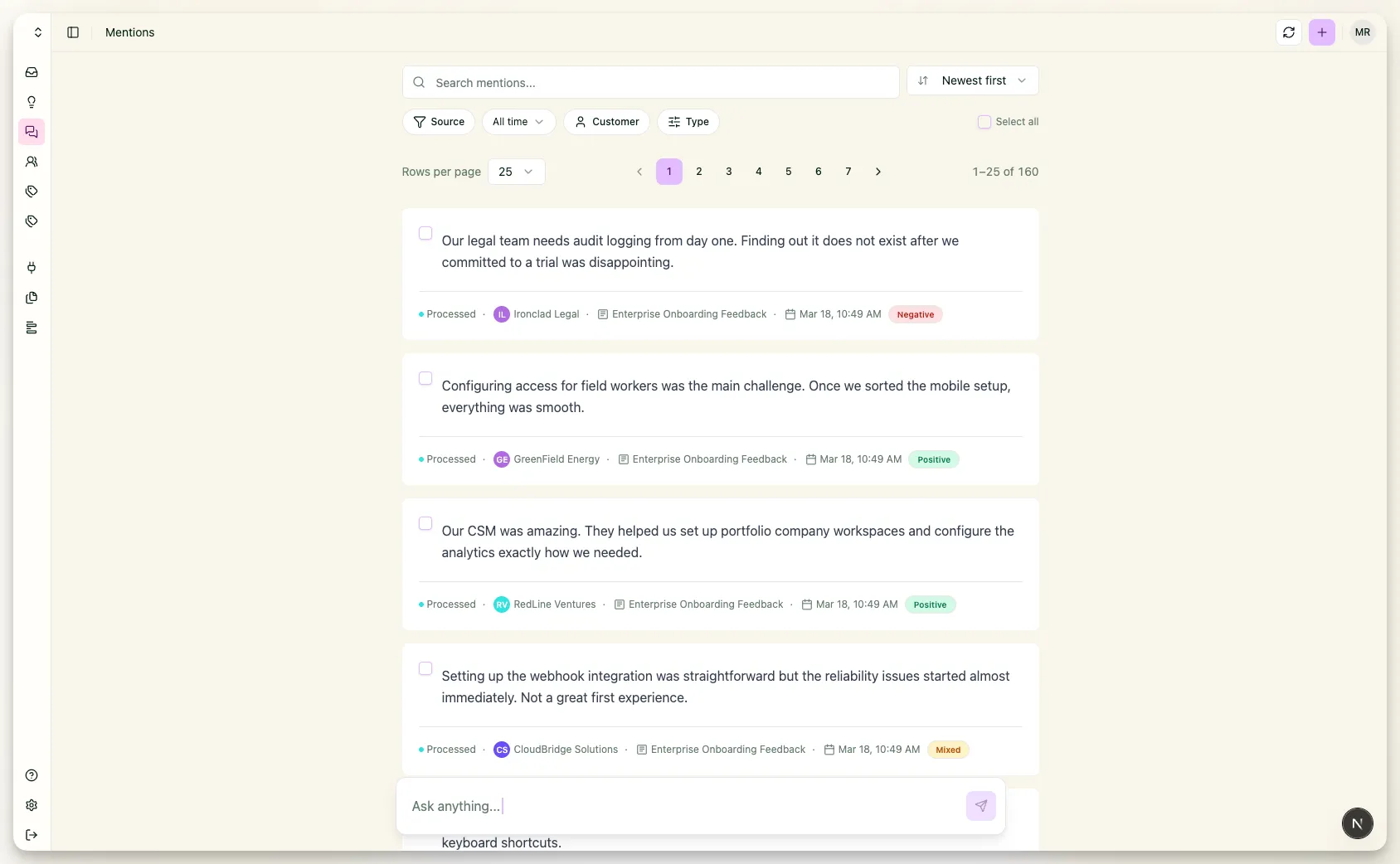
Screenshot: The Mentions list showing incoming entries with processing status, source and date.
Step 2: Pilea analyzes it automatically
When feedback arrives, Pilea’s AI reads it, identifies the underlying product problem or request, and categorizes it using your workspace’s analysis framework - bugs and features, jobs to be done, or categories you define yourself. This happens without any manual tagging or categorizing on your part.
The AI then links the feedback to a Backlog item: a structured record of that product problem or request. If a matching Backlog item already exists, the feedback is added to it as a new mention. If nothing matches, Pilea creates a new Backlog item. Every link carries a verbatim excerpt, the exact sentence that made Pilea connect the two, so you can check the link without opening the source.
Long feedback such as support threads and call transcripts can be condensed to its product-relevant essence before analysis. Turn this on per workspace under Settings → Analysis → Feedback cleaning. The original text is always kept and is one click away on every mention.
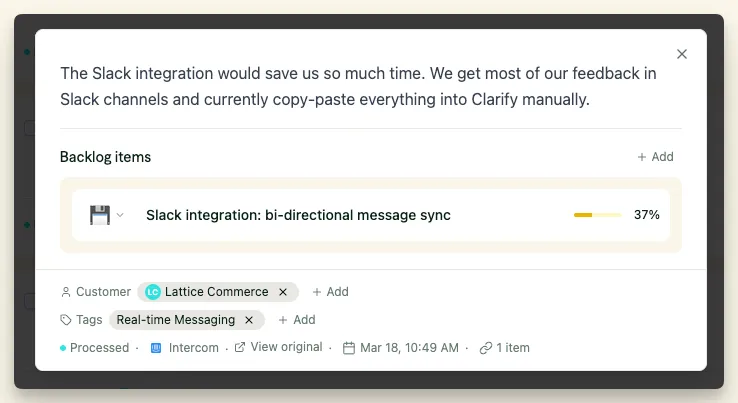
Screenshot: A mention open, showing the linked Backlog item.
Step 3: Your backlog reflects what customers actually say
The Backlog is Pilea’s version of a product backlog, but every item is grounded in real customer feedback. Each item shows:
- How many customers mentioned it
- The combined deal size those customers represent
- A priority score - a 0-100 number that factors in customer demand, deal size, sentiment and recency
- Triage status
- A mentions-over-time chart, so you can see whether a request is growing or fading
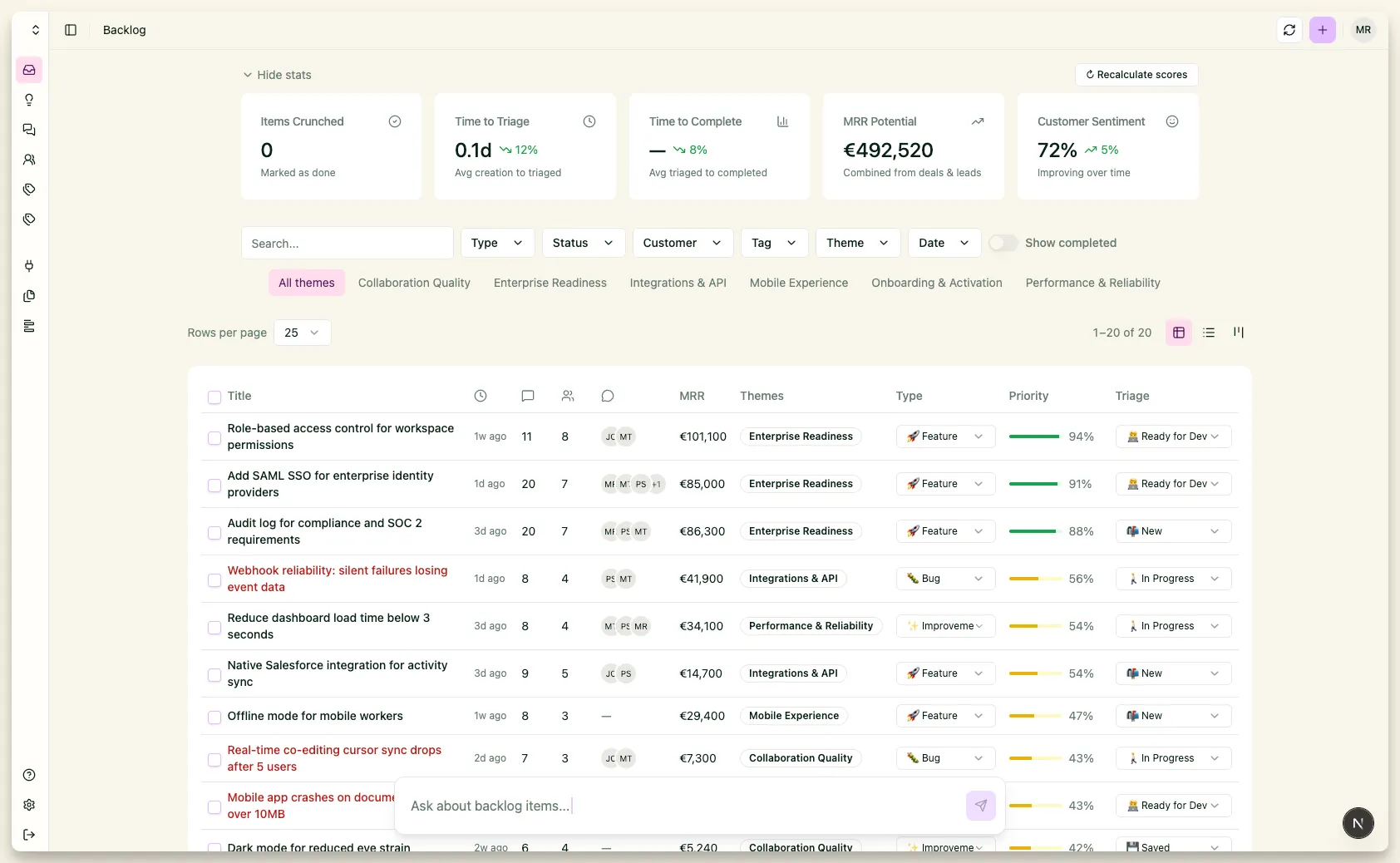
Screenshot: The Backlog view with items listed, showing priority scores, customer mention counts, and deal size on each row.
ℹ️ Note: Customer signals expire. By default, backlog items that haven’t been triaged and haven’t had a new mention for 30 days are archived automatically. You can change the number of days or turn this off under Settings → Backlog → Backlog automation. Archived items reopen if Pilea’s AI identifies the same underlying problem or request in new incoming feedback.
Step 4: The priority score helps you decide what to build next
Instead of deciding by gut feeling or loudest voice, you can see which backlog items matter most to your customers.
The score is calculated from:
- Customer breadth: how many distinct customers raised this issue
- Mention volume: total feedback mentions, log-scaled so one loud customer doesn’t dominate
- Revenue impact (deals): the deal size of existing customers who mentioned it
- Revenue impact (leads): the deal size of prospects who mentioned it
- Recency: how recently it was raised (older signals fade over time)
- Sentiment: how negative the feedback is, used as a small modifier
All scores are relative to your own workspace data, not global benchmarks. See how the priority score works.
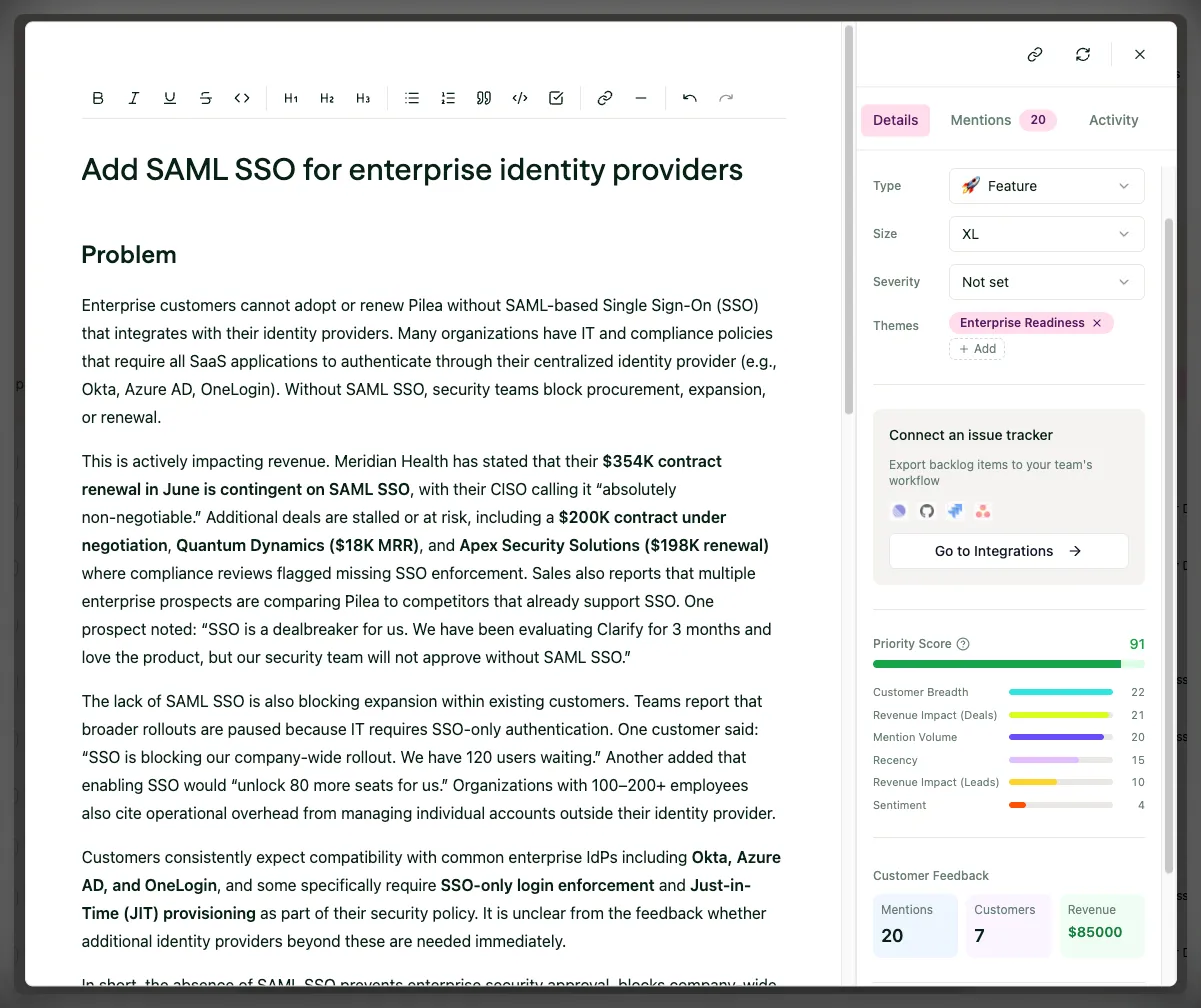
Screenshot: A Backlog item open, showing the priority score breakdown panel with factor inputs visible.
💡 Tip 1: Under Settings → Backlog → Priority scoring you can decide the weight of each factor. For example you can set deal size to zero if deal size isn’t relevant for how your company prioritizes. You can also switch to a RICE, WSJF or ICE-based score.
💡 Tip 2: You can always override the priority score manually. Because sometimes you know something the data doesn’t.
Step 5: Ask Pilea questions
When you need to go deeper than the backlog, ask Pilea in plain language. Press ⌘K (or Ctrl+K) and choose Chat with Pilea, or use the chat button in the page header. Type “What are enterprise customers complaining about in onboarding?” and Pilea searches across your feedback, backlog and customer data to give you a sourced answer. For longer research questions, Pilea can produce a full Insight report. See Chat and cowrite and How the Insights Agent works.

Screenshot: The input field you use to ask Pilea a question.
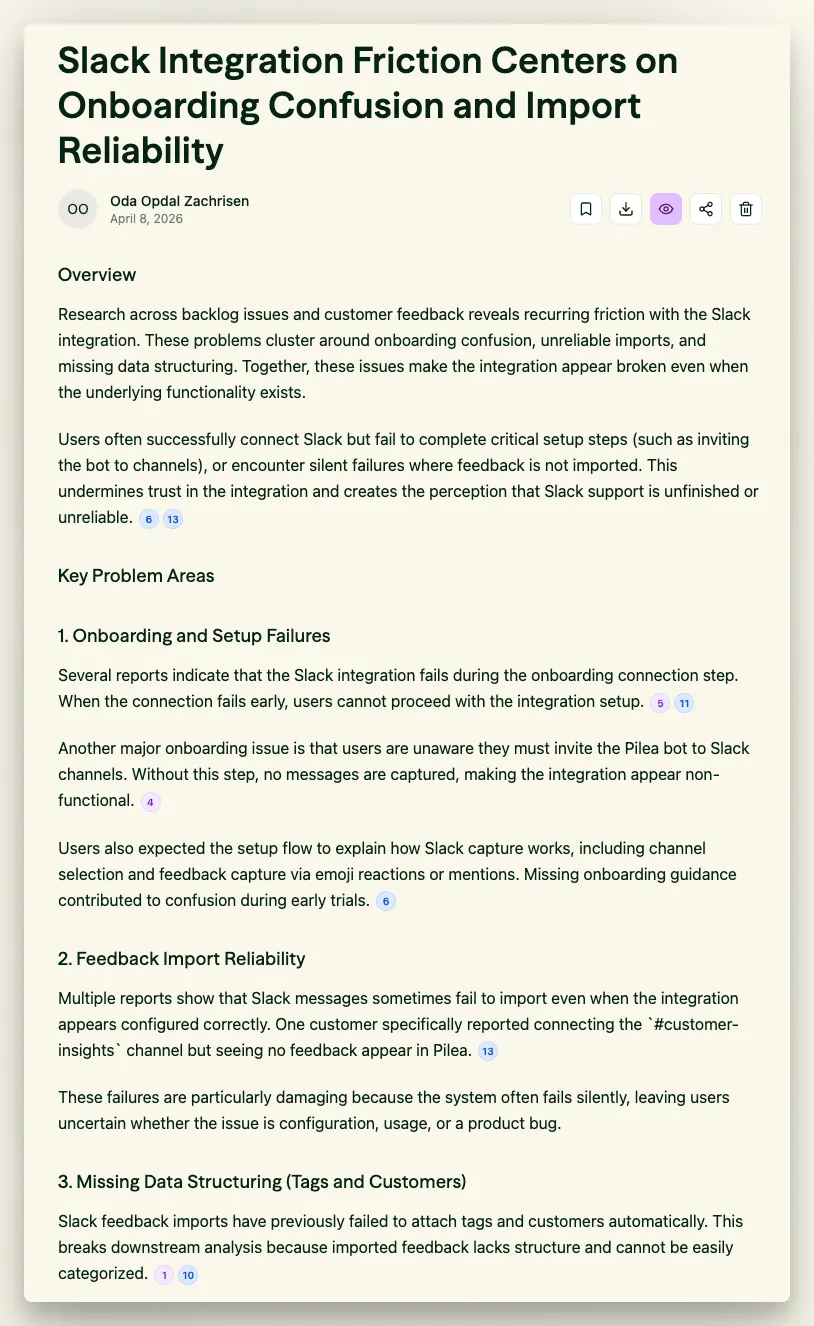
*Screenshot: An output showing inline references to backlog items and feedback. *
Step 6: Developers pull ready-specced tasks into their coding agent
Pilea spec the backlog items automatically, and you can make edits if you want. Once a Backlog item has been prioritized and specced, your developers can pull it directly into their coding environment using Pilea’s MCP integration. They get the full customer context - what users said, how many asked for it, and why it matters - without leaving their coding agent.
Pilea works with Cursor, Claude Code, VS Code, Windsurf, and any coding agent that supports the Model Context Protocol (MCP). See Using the Pilea API and MCP.
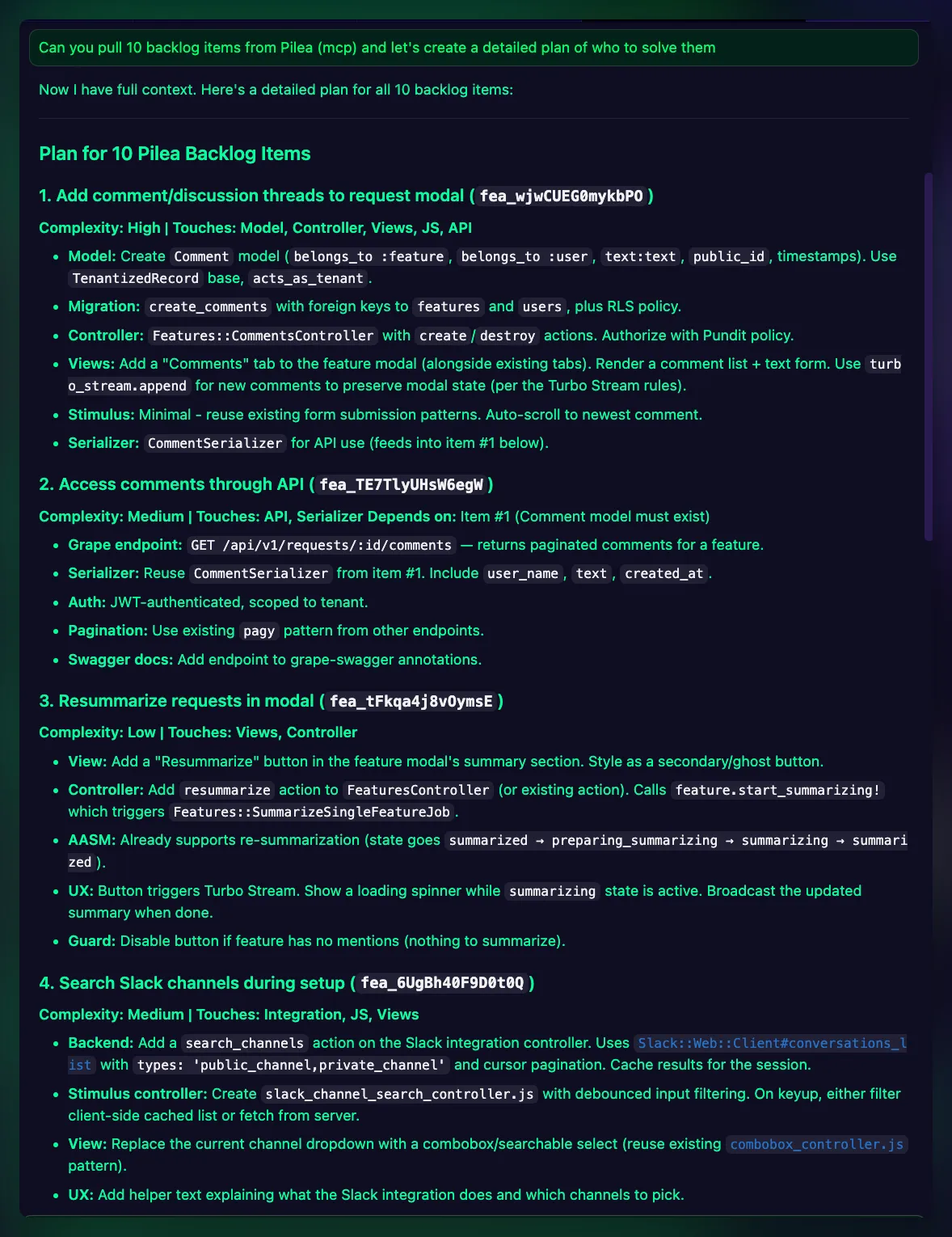
SCREENSHOT: Pilea being accessed from a coding agent.
What you’ll use every day
| Area | What it’s for |
|---|---|
| Backlog | Structured, prioritized list of customer problems and requests |
| Mentions | All raw customer signals in one place |
| Companies | Profiles showing all feedback linked to each account, with deal sizes and custom fields |
| Themes and Tags | Group backlog items and feedback the way your team thinks |
| Context | Uploaded files, documents and company context that make analysis sharper |
| Skills | Pilea’s scheduled reports and the feed of everything it has delivered |
| Surveys | Create surveys; responses flow into the Backlog automatically |
| Integrations (under Data Sources) | Connect and manage your feedback sources |
💡 Tip: Not everyone needs to be in the backlog every day. Give Pilea a skill with a weekly or monthly pulse for leadership or others, and a summary of top issues or trending feedback lands in their inbox or a Slack channel automatically. They stay informed without needing to log in. See Agents, skills, and pulses.
Stuck? Email us — a human answers, usually the same day.