
Support / Using Pilea
Uploading files and documents to Pilea
Pilea accepts feedback in many formats — from spreadsheets and surveys to interview transcripts, PDFs, and call recordings. Upload any document containing customer signals, and Pilea automatically analyzes it and creates backlog items from the patterns. You can categorize each upload by content type so Pilea analyzes it appropriately.
What file formats are supported
Pilea accepts:
- Spreadsheets: CSV, TSV, XLSX (with header rows)
- Documents: PDF, DOCX, TXT, MD, JSON, LOG
- Audio and video: MP3, MP4, M4A, WAV, OGG, WEBM, MOV. Recordings are transcribed and diarized before analysis. See Importing call recordings and meetings.
File size: Up to 50MB per document or spreadsheet, and up to 2GB per audio or video file. Upload up to 20 files at once.
ℹ️ Note: Older Excel files (XLS) and Google Docs need to be exported to XLSX, CSV, DOCX or PDF first. Images can’t be uploaded here.
Pilea auto-detects content in your files:
- Text columns (feedback, questions, responses)
- Dates (when responses were submitted)
- Email addresses (to link responses to existing customers)
- Names (associated with respondents or speakers)
ℹ️ Note: There’s no required column name or document structure. Pilea reads the content and sample values to detect what each column or section contains. If you have a simple two-column CSV with “Customer” and “Feedback”, it will work.
Content types — help Pilea analyze correctly
Every file gets a content type. With Auto-detect type, tag & customer switched on, Pilea reads your files before upload and suggests the type, a tag and a customer for each one, with a confidence badge so you can see what it guessed. You can change any of them in the review table.
| Content Type | Examples | Default mode |
|---|---|---|
| Survey | NPS/CSAT exports, app reviews, form responses | Analyze (extract customer feedback) |
| Interview | Customer interview transcripts, usability test notes | Analyze (primary research) |
| Sales / CS Call | Demo transcripts, renewal conversations | Analyze (direct customer feedback) |
| Customer Meeting Notes | Notes from customer meetings, partner reviews | Analyze (customer feedback signals) |
| Internal Meeting Notes | Sprint planning, retros, product reviews | Analyze (may reference customer feedback) |
| Feedback List | Bulk feedback exports, bullet-point lists | Analyze (individual items) |
| Document / Report | Research reports, strategy docs, insight decks | Knowledge (pre-synthesized context) |
The Mode column in the review table lets you switch between Analyze and Knowledge per file, or for all files at once.
Analyze tells Pilea to extract individual customer signals and create or update backlog items. Knowledge treats the file as reference material — Pilea stores it and you (and Pilea’s chat and skills) can search across it, but it won’t automatically generate backlog items.
How to upload your files
- Go to Context in the left sidebar. This is your file library.
- Click Upload.
- Drag and drop your file(s) onto the upload area, or click to browse.
- If Pilea finds customer names it doesn’t know yet, it asks whether to create them before continuing.
- In the review table, check the Mode (Analyze or Knowledge), Type, Tag and Customer for each file and adjust as needed.
- Click Upload Files.
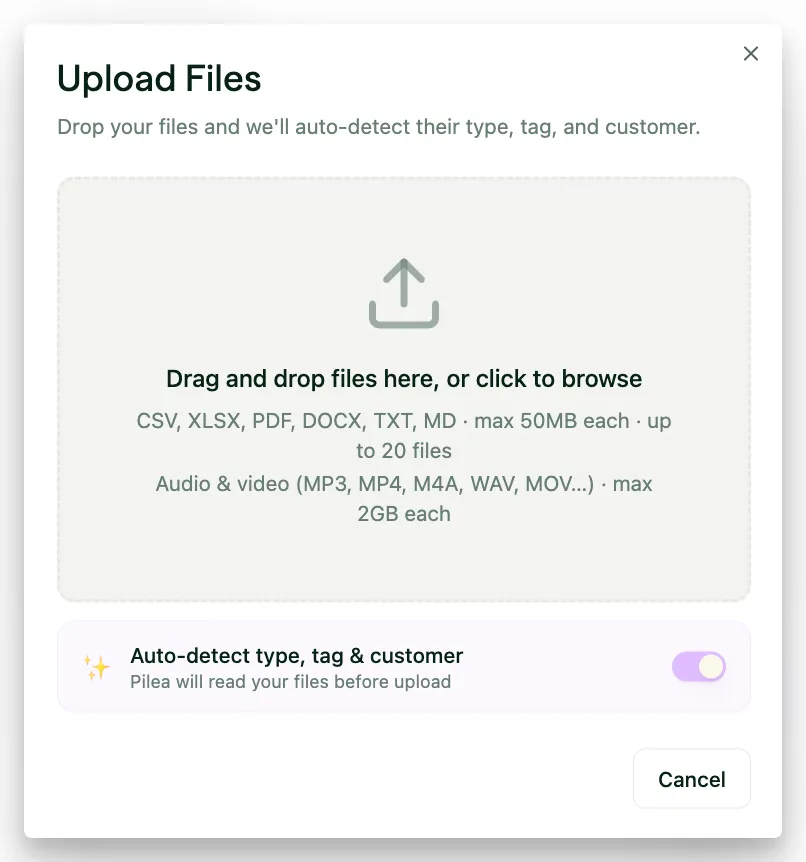
Screenshot: The Upload Files upload area.
💡 Tip: If you have multiple files to import, you can add up to 20 at once in a single upload. You can also reach the upload page from the + menu in the top-right corner (Upload file).
What happens after you upload
Pilea processes the file in the background. You’ll see the progress update to Analyzing as each row or section is processed, and you can leave the page. Once complete, the file shows as Analyzed (or Added to knowledge base for Knowledge files) in your Context list. Files that failed or only partly analyzed are marked so you can retry them.
Click the file to open its detail page. You’ll see up to three tabs:
- Summary — an AI-generated overview of the themes and patterns across all content. For interviews and calls, the summary gets a descriptive title (for example “Interview about onboarding friction”) that you can edit.
- Responses, Entries, Transcript or Content — a list of every imported entry (rows from a spreadsheet, transcript sections, or the document itself), depending on what you uploaded
- Backlog Items — the backlog items created or updated based on the feedback (only relevant if the mode was “Analyze”)
[SCREENSHOT: The file detail page showing the Summary, Responses, and Backlog Items tabs]
Each entry becomes a mention in Pilea, processed the same way as manually added feedback or feedback from an integration. Entries are linked to backlog items, and if an email column or contact name was present, they’re matched to customer records automatically.
Two things Pilea does on the way in so long files analyze well:
- Transcript-shaped spreadsheets are merged. If your rows look like a transcript (one row per spoken line, a handful of speakers), Pilea joins them back into conversation-level entries instead of analyzing each sentence on its own. Lists like “Bug: …” are left as individual items.
- Very long entries are analyzed in chunks that carry context from the rest of the document, rather than being cut off.
Viewing the imported entries in Mentions
The imported entries also appear in the Mentions list. Filter by Source and pick Import to see only your imported entries. Each mention shows its processing status — entries move from Waiting for analysis through Processing to Processed once analysis completes.
ℹ️ Note: If your file contained an email column or contact name and a customer with that email already exists in Pilea, the entry is linked to that customer profile automatically. If no match is found, the entry is still analyzed, but it will not be tied to a customer record.
Organizing files with folders
On the Context page you can create folders and move files into them. A folder can be shared with other workspaces: choose This workspace only, Specific workspaces or Everyone in the org when you create or edit it. Shared documents are analyzed separately in each workspace that can see them. Turn on Lock this folder if only the owner should be able to edit it; everyone else sees it as read only.
Files can be renamed from their menu. Deleting a file or knowledge document removes it permanently; there is no archive to restore from, so Pilea asks you to confirm first.
Stuck? Email us — a human answers, usually the same day.