
Support / Using Pilea
Setting up your prioritization framework
You can configure how Pilea calculates the priority score by choosing a framework and adjusting the weight of each signal. This is done per workspace in Settings > Workspace > Backlog, under Priority scoring, and requires an organization Owner or Admin role.
What you’ll need
- Owner or Admin role in your Pilea organization (see Pilea roles and permissions)
Choosing a framework
Under Scoring Framework you can pick between two options:
- Pilea Priority Score (default) - a weighted blend of six signals from your feedback data. Fully adjustable.
- WSJF-based - Cost of Delay divided by Job Size, derived automatically from your feedback signals. Fixed equal weights, always divided by item size.
Click the framework you want. The rest of the panel changes to match. See How the Pilea priority score works for what each framework measures.
Adjusting signal weights
The Pilea Priority Score comes with default weights. You can adjust these to match your business model.
- Go to Settings > Workspace > Backlog and scroll to Priority scoring.
- Use the weight sliders to increase or decrease each signal’s contribution. Sliders move in 5% steps.
- The weights must add up to 100%. The total above the sliders turns red until they do.
- Click Choose Priority Score & Recalculate to save. Pilea recalculates every score in the workspace as part of saving.
Reset to default puts the weights, half-life and effort divisor back to their defaults (you still need to click the save button).
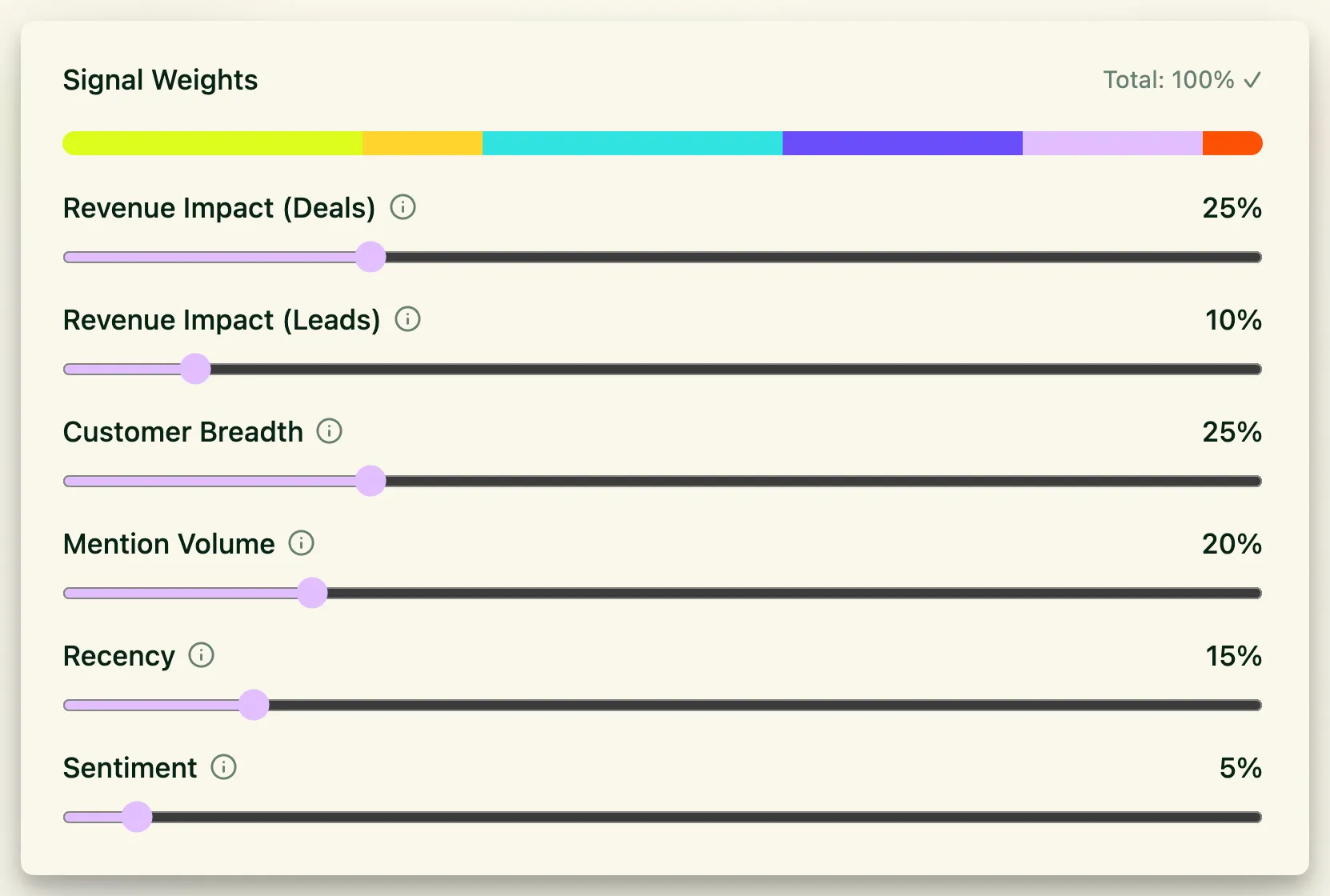

Screenshot: Weight sliders for the Pilea Priority Score framework showing the six signals. Remember to click Choose Priority Score & Recalculate to save adjustments.
When to adjust weights
- You have a small number of high-value accounts - Decrease Customer Breadth, increase Revenue Impact (Deals).
- Prospect feedback drives your roadmap - Increase Revenue Impact (Leads) above the default 10%.
- Your team moves fast and recency matters most - Increase Recency so fresh signals dominate.
- You don’t have CRM data connected yet - Revenue signals will show 0 for most items. Breadth, Volume, and Recency carry the score until you connect a CRM or set deal sizes on the Companies page.
💡 Tip: Start with the defaults. Adjust after you’ve seen a few weeks of scores and have a feel for what’s ranking too high or too low.
Weight sliders are only available for the Pilea Priority Score framework. WSJF-based uses fixed equal weights for its three components.
Setting the recency half-life
The Recency signal decays exponentially. The Recency Half-Life dropdown sets how many days it takes for a mention’s recency to drop to 50%. Options are 30 days (default), 60, 90, 180 days, or 1 year.
Pick a shorter half-life if your roadmap turns over quickly and last month’s feedback is already stale. Pick a longer one if you plan in quarters and don’t want a request to fade before you’ve had a chance to act on it.
The half-life applies to both frameworks, but the dropdown is only shown for the Pilea Priority Score. Save with Choose Priority Score & Recalculate.
Enabling the effort divisor
The effort divisor divides the priority score by the estimated size of each item (XS, S, M, L, XL). This surfaces quick wins - high-priority items that are small enough to ship fast. Pilea automatically suggests a size for each backlog item when it’s created, which you can override in the backlog detail view.
For Pilea Priority Score
The effort divisor is optional. To enable it:
- Go to Settings > Workspace > Backlog and scroll to Priority scoring.
- Toggle Backlog Item/Job Size on. The divisor for each size is listed under the toggle.
- Click Choose Priority Score & Recalculate.
Once enabled, backlog items with a size set on their detail panel will have their score adjusted. Items without a size are treated as M and are unaffected.
For WSJF-based
Job size is always part of WSJF, so there’s nothing to enable. Every item’s score is divided by its size.
Recalculating scores
Saving the priority scoring settings recalculates every backlog item in the workspace, and the backlog updates straight away without a page reload. You don’t need to trigger a separate recalculation after changing settings.
If scores ever look stale (for example after a large import), you can recalculate manually:
- Go to Backlog.
- Open the More options (⋯) menu next to the view toggle.
- Click Recalculate scores. A toast confirms how many items were updated.
This is available to Editors and Admins of the workspace. Pilea also recalculates all workspaces nightly, and once per day when it opens a backlog where every item still scores 0.
Manually overridden items keep their pinned score - the computed score updates silently in the background.

Screenshot: Recalculate scores on the backlog page.
What happens to existing scores
| Change you made | What happens |
|---|---|
| Switched framework | All computed scores recalculate with the new framework. Your feedback data is untouched |
| Adjusted weights | All computed scores recalculate with the new weights |
| Changed the recency half-life | All computed scores recalculate with the new decay curve |
| Enabled/disabled effort divisor | All computed scores with a set size recalculate with the size adjustment |
| Manually overridden items | Pinned score stays. Computed score updates in the background and shows as “Computed: X - manually overridden” |
Scores also recalculate automatically when new feedback is analyzed, when mentions are linked, unlinked or archived, when a company’s deal size or status changes, when an item’s size changes, and on a nightly batch job.
Changing settings from chat
You can also ask Pilea in chat to show the current scoring configuration or change it - for example “raise the recency weight to 25% and lower mention volume to 10%”. Pilea applies the change and recalculates the scores. See Chat and Cowrite.
Stuck? Email us — a human answers, usually the same day.