
Support / Using Pilea
How the Pilea priority score works
Every backlog item in Pilea gets a priority score - a number from 0 to 100 that tells you which items deserve attention first. The score is computed automatically from your customer data, not from gut feeling or whoever complained loudest.
This article explains what goes into the score, what it means, and how to use it in your prioritization decisions.
What the score represents
The priority score combines multiple customer signals into a single 0-100 number. A higher score means stronger overall customer signal, more customers asking for it, larger deal sizes attached, more recent mentions, and more negative sentiment.
A score of 85 means the item scores strongly across the factors that matter. It doesn’t mean “urgent” or “do this first”. It means the data behind this item is compelling compared to the rest of your backlog.
Scores are relative to your workspace. Each signal is measured against the highest value in your active backlog. If your largest customer mentions an item, that item scores high on the revenue signal, but so would any item mentioned by customers of similar size. Archived and completed items are excluded, so scores only reflect what’s actively in play. Archived mentions are excluded too - archiving test data or internal chatter takes it out of the score straight away.
The score only uses the signals below. Custom customer fields, tags, themes and your analysis framework don’t feed into it.
[SCREENSHOT: Backlog page showing multiple items with priority score bars of varying heights]
ℹ️ Note: The score is a starting point for prioritization, not the final answer. It surfaces patterns your team could miss manually, but the human still decides what to build.
The six input signals
The priority score combines six signals from your customer data. Each signal captures a different dimension of why an item matters.
| Signal | What it measures | Default weight |
|---|---|---|
| Revenue Impact (Deals) | Total deal size of existing customers (status: Customer) who mentioned this item. Deal sizes are synced from HubSpot or set manually on the Companies page. | 25% |
| Customer Breadth | How many distinct customers mentioned this item | 25% |
| Mention Volume | Total number of mentions, scaled so repeat complaints from one customer don’t overwhelm the score (one customer filing 50 tickets won’t outweigh three independent reports) | 20% |
| Recency | How recently customers mentioned this item (exponential decay, 30-day half-life by default - configurable) | 15% |
| Revenue Impact (Leads) | Total deal size of prospects (status: Lead) who mentioned this item. Deal sizes are synced from HubSpot or set manually on the Companies page. | 10% |
| Sentiment | Average sentiment of mentions - negative sentiment scores higher because frustrated customers are at higher churn risk | 5% |
Companies with the status Churned don’t count towards either revenue signal, but they still count towards breadth and volume.
Why these defaults?
The weights reflect a “protect revenue, respect breadth, trust volume” approach. These are defaults - you can adjust every weight in Settings > Workspace > Backlog, under Priority scoring, to match your business model.
- Revenue + Breadth together make up 50%. These are the hardest business signals to argue with. If high-value customers across multiple accounts are reporting the same issue, it’s almost certainly worth fixing.
- Mention Volume is meaningful but capped at 20%. Log normalization prevents one customer filing 50 tickets from overwhelming the score. Three independent mentions outweigh one customer’s repeat complaints.
- Recency provides time-awareness at 15%. Without this, old resolved issues would keep scoring high. With the default 30-day half-life, a 30-day-old signal contributes 50% of its original weight. After 90 days, it’s down to ~12%. You can change the half-life to 60, 90 or 180 days, or one year, if your planning horizon is longer.
- Lead revenue is a lighter signal at 10%. Prospects may never convert. Their feedback matters for sales enablement but shouldn’t drive the roadmap over paying customers.
- Sentiment is a tiebreaker at 5%. Sentiment analysis is useful but imprecise. At this weight, it nudges scores when other factors are close but never overrides strong business signals.
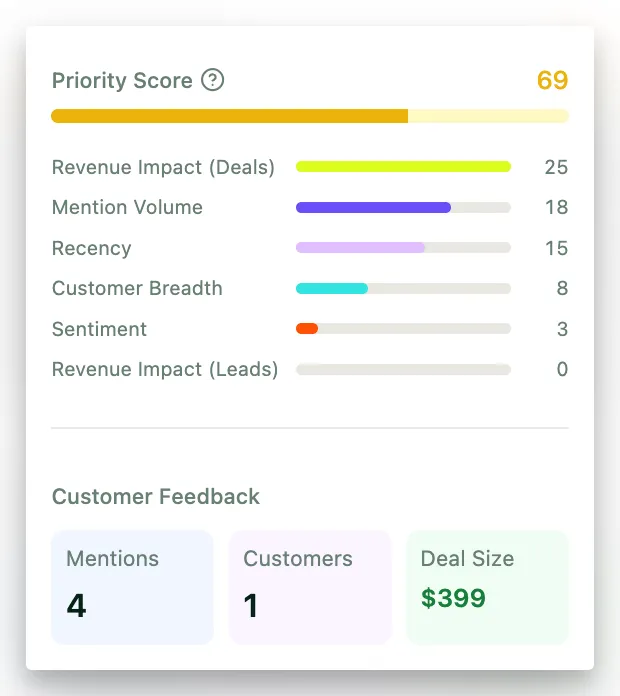
Screenshot: Priority breakdown in the item detail panel, showing the six signal bars for a backlog item, with each signal labeled and showing its contribution.
Reading the priority breakdown
Every score is transparent. You can see exactly what’s driving it.
Hover over any priority score bar in the backlog list, table, or kanban view to see the breakdown tooltip. Each bar represents one signal. Taller bars mean a higher contribution to the total score. The bars are sorted by impact. If the item has no linked mentions yet, the tooltip says so instead.
Open the item detail panel for the full breakdown. Under Priority Score in the Details tab, each signal has a bar and the number of points it contributes to the total. Click the ? next to the label to see how the active framework weights each signal, with a link straight to the scoring settings. This is also where you can override the score.
Above the item’s description you’ll find Mentions over time, a week-by-week chart of when the item was mentioned, so you can see whether a request is growing or fading before you read the breakdown. It appears once an item has more than one mention.
[SCREENSHOT: Backlog item detail panel showing the full priority breakdown section with signal bars and contributions]
When a factor shows zero
A zero-value factor doesn’t mean something is wrong - it means that signal has no data for this item yet.
- Revenue Impact shows 0? No customers with a known deal size have mentioned this item. Connect your CRM or add deal sizes on the Companies page.
- Recency shows 0? All mentions are older than the decay window. Fresh mentions will increase this.
- Sentiment shows 0? The mentions didn’t have clear positive or negative sentiment.
💡 Tip: Priority scores improve as you connect more data sources. Linking your CRM adds revenue signals. Importing more feedback increases volume and breadth signals.
Sorting by priority score
You can sort your backlog by priority score across all views - table, list, and kanban - using the sort dropdown next to the view toggle. The sort is server-side, meaning it ranks all items in your workspace (not just the visible page) before applying pagination.
Other available sort options include Title, Assignee, Status, Last Mentioned, Last Created, Mentions, Customers, and Deal Size.
Alternative frameworks
If your team already uses an industry-standard prioritization framework, you can switch to WSJF-based scoring. Pilea maps your customer signals into the framework automatically.
| Framework | Best for | How it works |
|---|---|---|
| Pilea Priority Score (default) | Teams new to data-driven prioritization | The six signals with configurable weights described above |
| WSJF-based | Teams prioritizing by Cost of Delay / Job Size | User/Business Value = deal size blend (60% customers, 40% leads), Time Criticality = recency of mentions, Risk Reduction = number of distinct customers. Equal weights, not configurable. Score is divided by job size. |
You can switch frameworks under Scoring Framework in Settings > Workspace > Backlog. Click Choose WSJF & Recalculate (or Choose Priority Score & Recalculate to switch back). Pilea recalculates every score as part of saving, and the backlog updates without a reload. This takes a few seconds for most workspaces.
With WSJF, the breakdown shows the three WSJF components instead of the six Pilea signals.
ℹ️ Note: Changing frameworks doesn’t delete any data. Your underlying customer signals stay the same - only how they’re combined into the final score changes.
Adjusting signal weights
The default weights work well for most teams. But if your business model is different - say you weight prospect feedback more heavily, or breadth matters less because you have a small number of high-value accounts - you can adjust.
In Settings > Workspace > Backlog, under Priority scoring, use the weight sliders to increase or decrease each signal’s contribution. Sliders move in 5% steps, and the weights must add up to 100%. The same section has the Recency Half-Life dropdown.
After adjusting, click Choose Priority Score & Recalculate to apply the new weights across all backlog items. Reset to default puts everything back.
Weight sliders are only available for the Pilea Priority Score framework. WSJF-based uses fixed equal weights for its three components.
You can also ask Pilea in chat to show or change the scoring settings. It recalculates the scores afterwards.
Changing the scoring settings requires an organization Owner or Admin role. See Setting up your prioritization framework for a walkthrough.
The effort divisor (job size)
The effort divisor divides the priority score by the estimated size of the item. This means a high-priority item that takes two days to fix surfaces above a high-priority item that takes six months - especially useful when you’re choosing what to do next.
Item size is estimated automatically by AI when the backlog item is created. You can change it manually in the item’s detail panel. Changing the size immediately recalculates the priority score.
The size values and their effect on the score:
- XS - / 0.5 (2x score boost, smallest jobs prioritized highest)
- S - / 0.75 (1.3x boost)
- M - / 1.0 (no change)
- L - / 1.5 (33% reduction)
- XL - / 2.0 (50% reduction, largest jobs deprioritized)
Items without a size are treated as M, so they’re unaffected.
For WSJF-based scoring, the effort divisor is always active - it’s a core part of how the framework calculates scores.
For Pilea Priority Score, the effort divisor is optional. You can enable it with the Backlog Item/Job Size toggle in Settings > Workspace > Backlog, under Priority scoring. When it’s on, the breakdown notes which divisor was applied.
Manual overrides
Sometimes you know something the data doesn’t. An executive made a commitment to a customer. A contractual obligation requires a fix by a specific date. You’re making a strategic bet the score can’t capture.
For these cases, you can pin a manual score on any backlog item:
- Open the backlog item’s detail panel.
- Under Priority Score in the Details tab, click the score number.
- Type your override score (0-100) and press Enter, or click away to save. Esc cancels.
- The override takes effect immediately.
The pinned score replaces the computed score everywhere - in the backlog list, kanban board, and table view. A pinned badge appears next to the score in the detail panel and the hover tooltip, and a small P badge in the list, table and kanban views, so your team knows it’s an override.
The original computed score is preserved and shown as “Computed: X - manually overridden” so your team can see both the data-driven ranking and the decision you made on top of it.
To remove an override, open the same panel and click the X next to the pinned badge. The computed score takes over again.
Setting or removing an override requires an Editor, Admin or Owner role.
⚠️ Important: When scores are recalculated (after new feedback, CRM syncs, or a manual recalculation), manually overridden items keep their pinned score. The computed score updates silently in the background.
When scores update
Priority scores recompute automatically:
- After feedback is analyzed - every analysis run recalculates the workspace, and linking or unlinking a mention recalculates that item
- When mentions are archived or restored - archived mentions don’t count, so affected items are rescored
- After CRM data syncs - when a customer’s deal size or status changes, every item that customer touched is rescored
- After item size changes - when you change an item’s size (XS-XL), the score recalculates immediately
- When you save the scoring settings - changing framework, weights, half-life or the effort divisor recalculates the whole workspace
- Nightly - a batch job recalculates all scores across all workspaces
You can also trigger a manual recalculation anytime: on the Backlog page, open the More options (⋯) menu next to the view toggle and click Recalculate scores. This needs an Editor, Admin or Owner role. Recalculated scores show up straight away, without reloading the page.
What the score is not
Being honest about what the priority score can’t do is as important as explaining what it can.
- It’s not a deadline. A score of 95 means “this ranks highest in your workspace,” not “fix this today.”
- It’s not a promise. The score reflects current data. It changes as new feedback comes in and old signals decay.
- It’s not a replacement for judgment. A feature might score highly on revenue, urgency, and breadth, and still be out of scope for where you’re taking the product. The score gives you the best data-informed starting point. You make the call.
From score to shipped code
Once your team has used the priority score to decide what to build next, the workflow continues:
- Triage the item - move it from New to Ready for Dev in the backlog.
- Spec the work - the item already has customer quotes, mention counts, and revenue data attached.
- Pull it into your IDE - developers can connect Pilea to Cursor, Claude Code, or any MCP-compatible IDE and see full customer context while they code. No tab switching, no “why are we building this?” questions. See Using the Pilea API and MCP.
Stuck? Email us — a human answers, usually the same day.