
Support / Using Pilea
Adding feedback manually in Pilea
Manual feedback entry lets you add any customer signal directly into Pilea: a quote from a call, something a customer said in a meeting, a complaint shared in Slack. Once saved, Pilea analyzes it automatically and links it to the right backlog item, exactly the same way it handles feedback from your integrations.
When to add feedback manually
Manual entry is useful when the signal didn’t come through a connected integration:
- A customer mentioned something during a sales call or demo
- A colleague relayed feedback from a customer conversation
- You spotted a comment in a chat thread or email
- You’re testing Pilea before connecting your integrations
💡 Tip: If you regularly capture feedback this way, from calls or Slack threads, for example, connecting an integration will automate the process. See Choosing your first integration for where to start.
How to add a feedback entry
- Click + in the top-right corner, then click Add feedback.
- Paste or type the customer’s feedback in the Feedback field. Include the customer’s actual words where possible. The AI uses the original phrasing when linking to backlog items.
- If you have more than one workspace you can write to, pick the Workspace the feedback belongs in.
- In the Customers field, search for and select the customer this feedback is from. You can also pick a customer group to register the feedback against every company in that group at once.
- In the Tags field, select the tag this feedback relates to.
- Click Add.
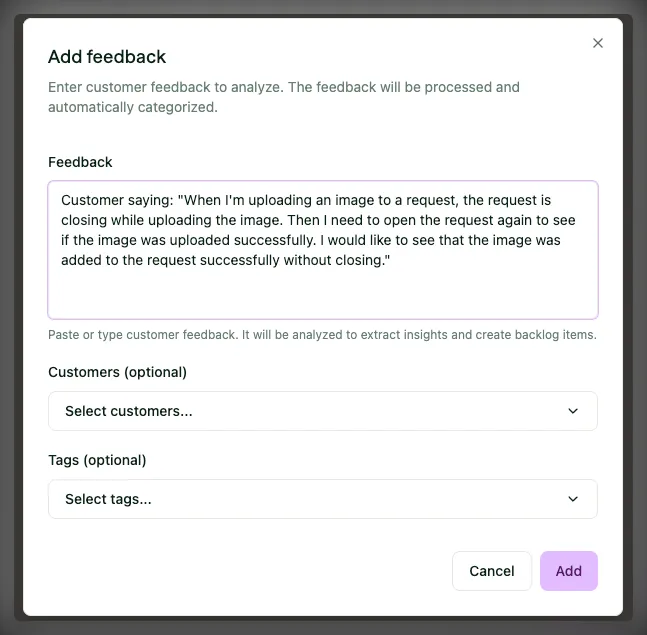
Screenshot: The Add feedback form showing the Feedback text field, Customers selector, and Tags selector.
ℹ️ Note: Both Customers and Tags are optional, but linking feedback to a customer improves the accuracy of the priority score. Feedback without a customer still gets analyzed and linked to backlog items, but it will not contribute to revenue-weighted prioritization.
What happens after you save
As soon as you save a feedback entry, Pilea’s analysis pipeline runs automatically. You don’t need to trigger it manually.
Here’s what happens:
- PII redaction runs first (if enabled for your organization). Nothing is analyzed until redaction has confirmed the text is safe.
- Long feedback is condensed if feedback cleaning is switched on for the workspace (Settings → Analysis). Pilea extracts the product-relevant part before analyzing. The original text is always kept.
- The AI reads the feedback and identifies the underlying product issue or feature request.
- A mention is created - a structured record of the feedback enriched with sentiment, classification, and a link to the relevant backlog item.
- The backlog item is updated. If a matching backlog item already exists, this feedback is added as a new mention and its priority score is recalculated. If nothing matches, Pilea creates a new backlog item.
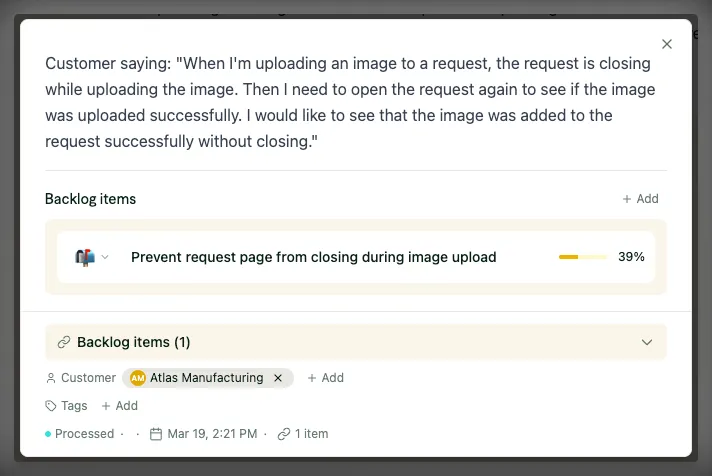
Screenshot: A feedback entry in the Mentions list showing its processing status after being saved.
Processing typically takes a few seconds. You can see the status in the Mentions list - entries move from Waiting for analysis through Processing to Processed once the pipeline completes. If the feedback didn’t contain anything actionable (a thank-you note, small talk), it ends up as No items found. That isn’t an error.
Viewing the result
Once analyzed, click the mention to open it. You’ll see:
- The Backlog items it was linked to, each showing its type (the category from your workspace’s analysis framework)
- The sentiment Pilea detected, shown as a badge on the mention in the list
- The Customers and Tags attached to it
If feedback cleaning condensed the text, the mention shows the cleaned version with a Cleaned for analysis badge. Click Show original to read the customer’s exact words.
SCREENSHOT: An open mention showing the linked backlog item, sentiment, and classification.
If the link looks wrong - for example, the feedback was matched to the wrong backlog item - you can change it manually. In the Backlog items section of the mention, remove the wrong item and search for the right one to link it instead.
💡 Tip: Every link between a mention and a backlog item carries a verbatim supporting excerpt, the sentence that made Pilea connect the two. You’ll see it on the item’s Mentions tab, so you can check a link without opening the source.
Stuck? Email us — a human answers, usually the same day.