Remote MCP and Ask Pilea in Slack
Your customer evidence used to live in Pilea, and you had to go to Pilea to get it. As of this month it comes to you, in the AI tools you already use and in Slack.
- Remote MCP – connect Claude, ChatGPT, Cursor, VS Code or Claude Code to Pilea with one URL and your normal Pilea sign-in. No API key, no npx.
- Ask Pilea in Slack – DM Pilea or tag @Pilea in a thread with a question, and get an answer with links to the feedback behind it.
- Surveys in 12 languages, with AI-suggested translations
- Recently solved – see which companies asked for something you’ve just shipped
- General instructions for Pilea – standing “always do this, never do that” rules
- Plain joins the integrations, and a long list of integration fixes
Remote MCP: Pilea inside Claude, ChatGPT, Cursor and VS Code
Until now, getting Pilea into an AI tool meant our npm package. That meant creating an API key, editing a config file and running npx. Fine for developers, a lot to ask of everyone else.
Pilea’s MCP server is now hosted. The address is:
https://mcp.getpilea.com/mcpAdd it to your AI tool, sign in with your Pilea account (password or SSO), pick a workspace and approve. That’s it. Then ask things like “What are our enterprise customers asking for most this month?” or “Which bugs did Northwind report this quarter?”, and the answer comes back built from your backlog, customers and feedback, with the customers’ own words in it.
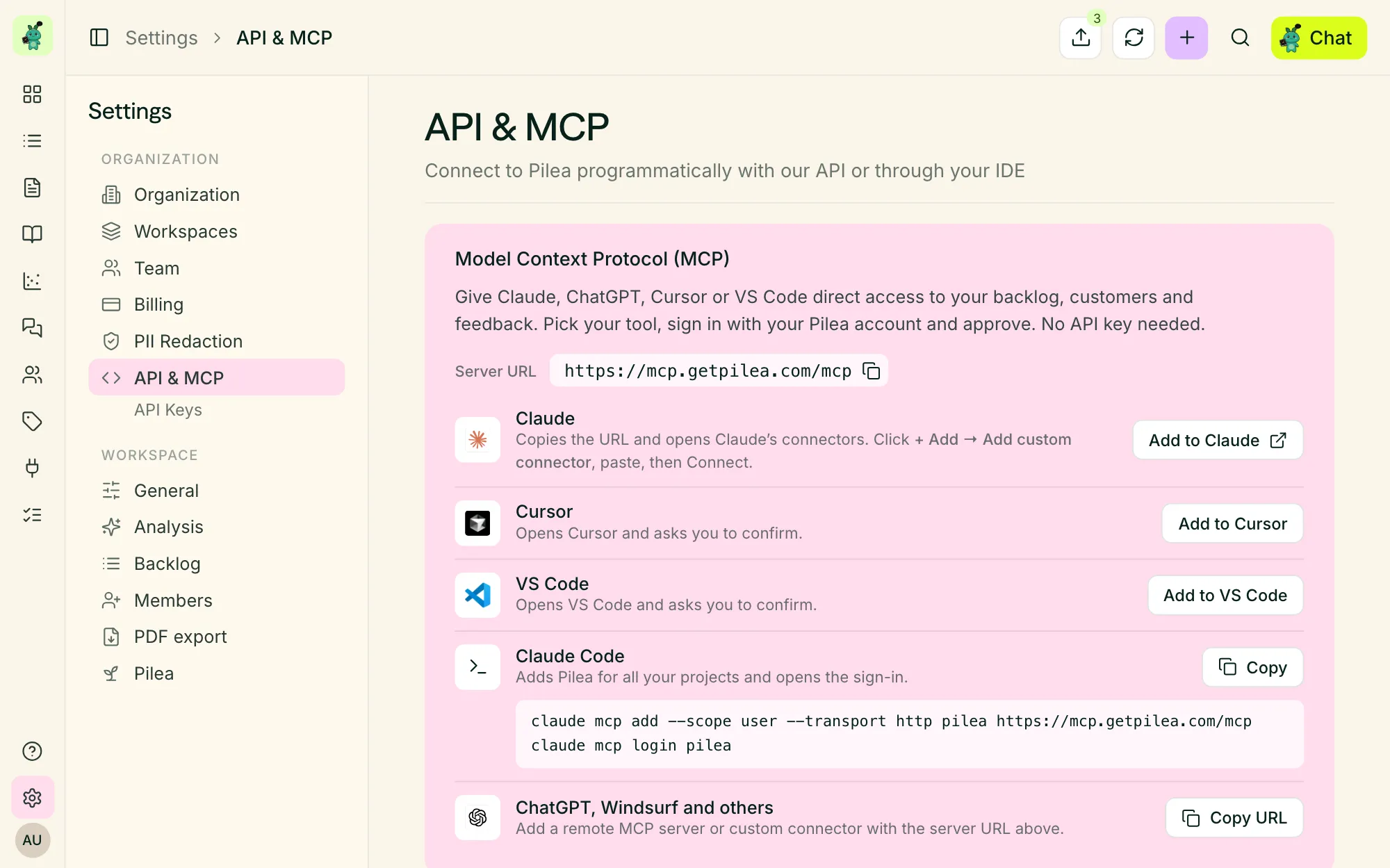
Settings → API & MCP: one server URL, and a button for each tool.
Connecting your tool
Go to Settings → API & MCP. The Model Context Protocol (MCP) card has a button for each tool:
| Tool | How |
|---|---|
| Claude (web, desktop, mobile) | Add to Claude copies the URL and opens Claude’s connector settings. Choose Add custom connector, paste and connect. On Claude Team and Enterprise, an owner adds it once under Organization settings → Connectors. |
| Cursor | Add to Cursor opens Cursor and asks you to confirm. |
| VS Code | Add to VS Code does the same for VS Code. |
| Claude Code | Copy gives you a one-line command that adds Pilea to every project and opens sign-in. |
| ChatGPT, Windsurf and others | Copy URL, then add it as a remote MCP server or custom connector. |
What it can do, and who can do what
The hosted server has 55 tools covering backlog items, mentions, customers and customer fields, tags, themes, documents, workspaces and skills. So you can search and triage the backlog, log feedback from a conversation, update customers in bulk or run a Pilea skill from your AI tool.
What a connection can do follows your role in Pilea:
- Viewers get read-only access.
- Editors can also create and update mentions, backlog items, customers, tags and documents, and run skills.
- Admins and owners get everything, including workspace settings.
When you approve, you choose one workspace or All workspaces I can access. Every connection shows up under Connected MCP clients, with when it was last used. Revoke one there and it stops working straight away. The same happens when someone’s role changes or they leave your organisation.
A few practical notes:
- Remote MCP is included on the Team and Growth plans.
- If you connected using
api.getpilea.com/mcpbefore 14 October, remove that connection and addmcp.getpilea.com/mcpinstead. - If you use the npm package for commit hooks and item selection in your editor, keep it. It adds those git workflows on top of the hosted server.
Full setup details are in Using the Pilea API and MCP.
Ask Pilea in Slack
Most product questions get asked in Slack first. “Is this actually a big deal?” “Who asked for that?” “Did anyone complain about the new pricing page?” Now Pilea can answer them there.
DM Pilea with a question and it answers in the DM. It remembers the last day of the conversation, so follow-ups like “and last month?” work.
Tag @Pilea in a channel with a question and it answers in the thread. If you tag it partway down a thread, it reads the whole thread first, so “@Pilea is this a known issue?” works the way you’d hope.
Every answer shows its sources. Claims come with numbered links that open the backlog item, mention or customer in Pilea, so anyone in the thread can check them.
It’s the same Pilea as in the app, with the same knowledge of your backlog, customers, feedback, surveys and documents. Answers in Slack are kept short, though, and charts, tables and longer documents stay in the app.
Capturing feedback still works. Pilea works out whether you’re asking a question or handing it feedback. “@Pilea log this”, or tagging it under a customer’s message, saves the feedback as before. A bare @Pilea in a thread saves the thread’s first message, with its replies and files. If the thread has already been saved, you get a link to it rather than a duplicate.
Who gets answers
People are matched to their Pilea account by their Slack email. Editors, admins and owners can make changes from Slack, and viewers get read-only answers. You control the rest under Integrations → Slack → Settings → Ask Pilea:
- Answer questions in Slack – turn it off and every @Pilea mention is saved as feedback, like before.
- Require a Pilea account – on by default. Turn it off to let teammates without an account get read-only answers from public workspaces.
- Answer other Slack bots – on by default, so other apps and AI agents in your Slack can get read-only answers too.
Pilea never answers people from outside your company on Slack Connect, or guests without a Pilea account. Slack messages are PII-redacted with your organisation’s settings before Pilea reads them, and Pilea never @-mentions anyone or posts @channel.
Admins: one click to switch it on. Pilea needs two new Slack permissions, one to read DMs and one to match people by email. Open Integrations → Slack and click Reconnect Slack. Until you do, @Pilea mentions keep being saved as feedback, exactly as before.
More in Connecting Slack to Pilea.
Surveys in 12 languages
A survey can now have a default language plus translations into English, Norwegian, Swedish, Danish, Finnish, German, French, Spanish, Italian, Dutch, Portuguese and Polish.
Pilea suggests the translations, and you review them side by side with the original. Questions and choices are shared across languages, so a “Very likely” in Swedish counts the same as one in English. You can fill in missing translations in one go, or translate a question you just added straight from its card without touching wording you’ve already reviewed. If your copy doesn’t match the language you’ve picked, Pilea notices and offers to switch.
Choose the language per embed or share link. The survey’s buttons and labels switch language too, and every response records which language it was answered in. The details are in Creating surveys.
Also in surveys: the completion rate is now calculated from responses that answered every question, instead of showing 0%. The survey in the feedback modal is readable in dark mode, and Publish now saves any edits you haven’t saved yet.
Recently solved: who to tell
Shipping something a customer asked for is the best excuse to get in touch. Companies → Recently solved lists, company by company, the backlog items they asked for that you’ve since completed, for any time window you pick.
The new notification bell in the header rounds these up, for example “8 new tasks solved for 8 companies”. What you’ve read is remembered across your devices. The same list is available through the API and MCP, so you can feed it into your own follow-up workflow.
General instructions for Pilea
Under Settings → Pilea → Customize Pilea → General instructions you can now give Pilea standing rules: always group feedback by product area, never count internal test accounts, the enterprise segment means 200+ seats. You can @-mention companies, documents and folders, just like in chat. Pilea follows these instructions in chat and in every skill, and they win over a skill’s defaults when the two disagree.
Also for Pilea: long answers that call a lot of tools are no longer cut off partway through, and documents Pilea writes no longer show their title twice.
Integrations
New: Plain. Connect with an API key. Support threads become feedback, companies become customers and labels become tags. Plain has its own filter in Mentions and its own analysis template.
Also new or improved:
- Remove imported data. On an integration’s Advanced tab, delete what it imported, one sync type at a time, with live counts before you confirm.
- HubSpot deal sizes now add up correctly per company, and a sync no longer wipes them. Turn off the new Revenue toggle if you’d rather not import deal sizes at all.
- Skip meetings by title. For Gong, Fireflies, Jiminny, Granola and Attio, add keywords like “internal” or “1:1”, and calls with those words in the title won’t be imported.
- Better analysis for Intercom, Zendesk, Notion, Attio and Plain, using new templates written for each source.
- Jira stays connected through long idle periods. If it ever does need reconnecting, Integrations tells you and has a Reconnect button.
- GitHub. If you need an org owner’s approval to install, Pilea now says so, instead of “Something went wrong”.
- Intercom. “View original” links work for EU- and AU-hosted workspaces, and disconnecting removes the app on Intercom’s side too.
- Attio CRM launched earlier this month. Read the launch post.
Backlog
- Empty AI-created items tidy themselves up. When the last mention on a backlog item that analysis created is deleted, unlinked or archived, the item goes too. Items you created yourself, items exported to a tracker, and items in progress or completed are never removed. This applies to items created from now on.
- Themes – select all, merge and delete now work on the theme page.
- Priority scores update without reloading the page.
Under the hood
- Fixes for everything raised in September’s external security review: stricter rules on who can connect GitHub, Slack and Notion, SSO that only accepts verified emails, and hardened agent tools.
- Large HubSpot accounts no longer get stuck mid-sync, and priority recalculation does a lot less work, so the app stays quick during big imports.
- Invited teammates are signed straight in after they create their account.
As always, a lot of this started as feedback from you, and some of it came in through Slack. Now you can ask Pilea about it there too.
The Pilea Team 🌱